> ## Documentation Index
> Fetch the complete documentation index at: https://gofastmcp.com/llms.txt
> Use this file to discover all available pages before exploring further.
# AuthKit 🤝 FastMCP
> Secure your FastMCP server with AuthKit by WorkOS
export const VersionBadge = ({version}) => {
return
New in version {version}
;
};
This guide shows you how to secure your FastMCP server using WorkOS's **AuthKit**, a complete authentication and user management solution. This integration uses the [**Remote OAuth**](/v2/servers/auth/remote-oauth) pattern, where AuthKit handles user login and your FastMCP server validates the tokens.
## Configuration
### Prerequisites
Before you begin, you will need:
1. A **[WorkOS Account](https://workos.com/)** and a new **Project**.
2. An **[AuthKit](https://www.authkit.com/)** instance configured within your WorkOS project.
3. Your FastMCP server's URL (can be localhost for development, e.g., `http://localhost:8000`).
### Step 1: AuthKit Configuration
In your WorkOS Dashboard, enable AuthKit and configure the following settings:
Go to **Applications → Configuration** and enable **Dynamic Client Registration**. This allows MCP clients register with your application automatically.
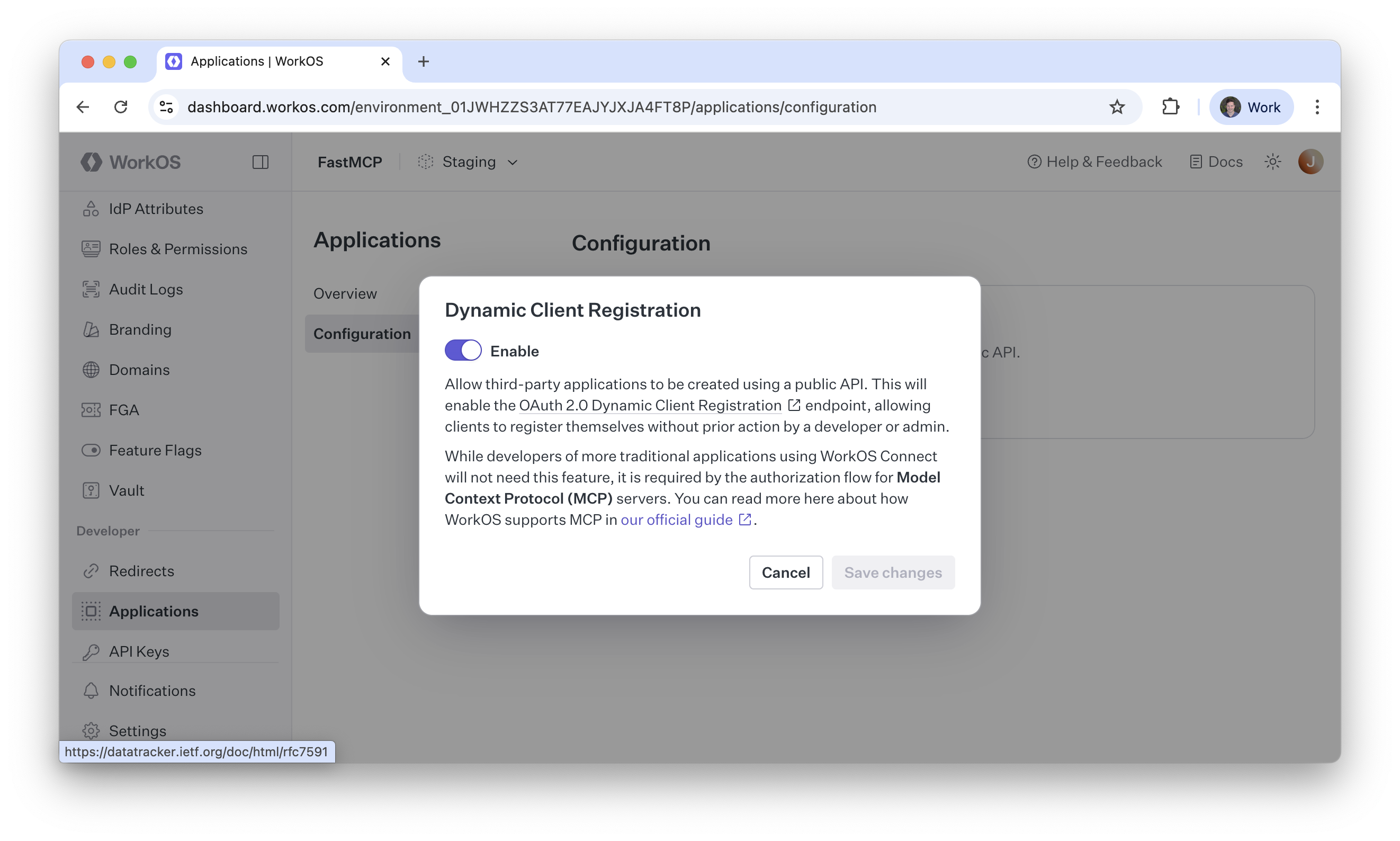 Find your **AuthKit Domain** on the configuration page. It will look like `https://your-project-12345.authkit.app`. You'll need this for your FastMCP server configuration.
### Step 2: FastMCP Configuration
Create your FastMCP server file and use the `AuthKitProvider` to handle all the OAuth integration automatically:
```python server.py theme={"theme":{"light":"snazzy-light","dark":"dark-plus"}}
from fastmcp import FastMCP
from fastmcp.server.auth.providers.workos import AuthKitProvider
# The AuthKitProvider automatically discovers WorkOS endpoints
# and configures JWT token validation
auth_provider = AuthKitProvider(
authkit_domain="https://your-project-12345.authkit.app",
base_url="http://localhost:8000" # Use your actual server URL
)
mcp = FastMCP(name="AuthKit Secured App", auth=auth_provider)
```
## Testing
To test your server, you can use the `fastmcp` CLI to run it locally. Assuming you've saved the above code to `server.py` (after replacing the `authkit_domain` and `base_url` with your actual values!), you can run the following command:
```bash theme={"theme":{"light":"snazzy-light","dark":"dark-plus"}}
fastmcp run server.py --transport http --port 8000
```
Now, you can use a FastMCP client to test that you can reach your server after authenticating:
```python theme={"theme":{"light":"snazzy-light","dark":"dark-plus"}}
from fastmcp import Client
import asyncio
async def main():
async with Client("http://localhost:8000/mcp", auth="oauth") as client:
assert await client.ping()
if __name__ == "__main__":
asyncio.run(main())
```
## Environment Variables
For production deployments, use environment variables instead of hardcoding credentials.
### Provider Selection
Setting this environment variable allows the AuthKit provider to be used automatically without explicitly instantiating it in code.
Set to `fastmcp.server.auth.providers.workos.AuthKitProvider` to use AuthKit authentication.
### AuthKit-Specific Configuration
These environment variables provide default values for the AuthKit provider, whether it's instantiated manually or configured via `FASTMCP_SERVER_AUTH`.
Your AuthKit domain (e.g., `https://your-project-12345.authkit.app`)
Public URL of your FastMCP server (e.g., `https://your-server.com` or `http://localhost:8000` for development)
Comma-, space-, or JSON-separated list of required OAuth scopes (e.g., `openid profile email` or `["openid", "profile", "email"]`)
Example `.env` file:
```bash theme={"theme":{"light":"snazzy-light","dark":"dark-plus"}}
# Use the AuthKit provider
FASTMCP_SERVER_AUTH=fastmcp.server.auth.providers.workos.AuthKitProvider
# AuthKit configuration
FASTMCP_SERVER_AUTH_AUTHKITPROVIDER_AUTHKIT_DOMAIN=https://your-project-12345.authkit.app
FASTMCP_SERVER_AUTH_AUTHKITPROVIDER_BASE_URL=https://your-server.com
FASTMCP_SERVER_AUTH_AUTHKITPROVIDER_REQUIRED_SCOPES=openid,profile,email
```
With environment variables set, your server code simplifies to:
```python server.py theme={"theme":{"light":"snazzy-light","dark":"dark-plus"}}
from fastmcp import FastMCP
# Authentication is automatically configured from environment
mcp = FastMCP(name="AuthKit Secured App")
```
Find your **AuthKit Domain** on the configuration page. It will look like `https://your-project-12345.authkit.app`. You'll need this for your FastMCP server configuration.
### Step 2: FastMCP Configuration
Create your FastMCP server file and use the `AuthKitProvider` to handle all the OAuth integration automatically:
```python server.py theme={"theme":{"light":"snazzy-light","dark":"dark-plus"}}
from fastmcp import FastMCP
from fastmcp.server.auth.providers.workos import AuthKitProvider
# The AuthKitProvider automatically discovers WorkOS endpoints
# and configures JWT token validation
auth_provider = AuthKitProvider(
authkit_domain="https://your-project-12345.authkit.app",
base_url="http://localhost:8000" # Use your actual server URL
)
mcp = FastMCP(name="AuthKit Secured App", auth=auth_provider)
```
## Testing
To test your server, you can use the `fastmcp` CLI to run it locally. Assuming you've saved the above code to `server.py` (after replacing the `authkit_domain` and `base_url` with your actual values!), you can run the following command:
```bash theme={"theme":{"light":"snazzy-light","dark":"dark-plus"}}
fastmcp run server.py --transport http --port 8000
```
Now, you can use a FastMCP client to test that you can reach your server after authenticating:
```python theme={"theme":{"light":"snazzy-light","dark":"dark-plus"}}
from fastmcp import Client
import asyncio
async def main():
async with Client("http://localhost:8000/mcp", auth="oauth") as client:
assert await client.ping()
if __name__ == "__main__":
asyncio.run(main())
```
## Environment Variables
For production deployments, use environment variables instead of hardcoding credentials.
### Provider Selection
Setting this environment variable allows the AuthKit provider to be used automatically without explicitly instantiating it in code.
Set to `fastmcp.server.auth.providers.workos.AuthKitProvider` to use AuthKit authentication.
### AuthKit-Specific Configuration
These environment variables provide default values for the AuthKit provider, whether it's instantiated manually or configured via `FASTMCP_SERVER_AUTH`.
Your AuthKit domain (e.g., `https://your-project-12345.authkit.app`)
Public URL of your FastMCP server (e.g., `https://your-server.com` or `http://localhost:8000` for development)
Comma-, space-, or JSON-separated list of required OAuth scopes (e.g., `openid profile email` or `["openid", "profile", "email"]`)
Example `.env` file:
```bash theme={"theme":{"light":"snazzy-light","dark":"dark-plus"}}
# Use the AuthKit provider
FASTMCP_SERVER_AUTH=fastmcp.server.auth.providers.workos.AuthKitProvider
# AuthKit configuration
FASTMCP_SERVER_AUTH_AUTHKITPROVIDER_AUTHKIT_DOMAIN=https://your-project-12345.authkit.app
FASTMCP_SERVER_AUTH_AUTHKITPROVIDER_BASE_URL=https://your-server.com
FASTMCP_SERVER_AUTH_AUTHKITPROVIDER_REQUIRED_SCOPES=openid,profile,email
```
With environment variables set, your server code simplifies to:
```python server.py theme={"theme":{"light":"snazzy-light","dark":"dark-plus"}}
from fastmcp import FastMCP
# Authentication is automatically configured from environment
mcp = FastMCP(name="AuthKit Secured App")
```